
Getting started with Reporting APIs
Configuring a reporting endpoint
To configure a reporting endpoint, you must have a System Admin role or the Configure Reporting API Endpoint permission to your role. If you do not have this permission, contact your system administrator.
In this release, only one reporting endpoint configuration can be created. After the endpoint is configured, you can change the configuration, regenerate API keys, and activate or suspend the endpoint as needed.
To configure a reporting endpoint
-
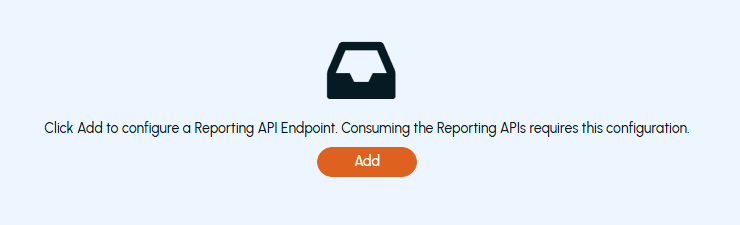
In the left navigation pane, select Configuration>Reporting Endpoint tab.
-
Click Add.
-
On the Add New Endpoint Configuration page, specify the following details and click Save.
Parameters Description Name Specify a unique name for the reporting endpoint configuration. Description Provide a brief description of the reporting endpoint configuration. Scope Decides which APIs are accessible via current configuration. By default, it is set to All API. IP Address 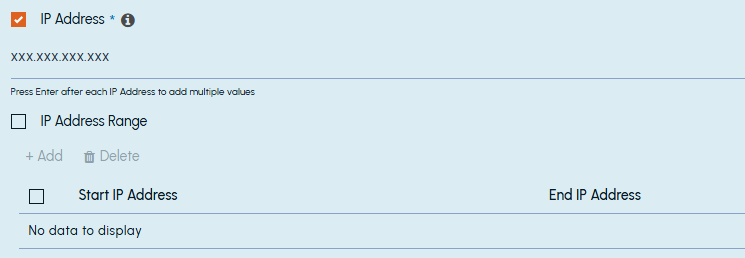 Specify individual IP Addresses that are allowed to access APIs via current configuration.
Note: Only IPv4 addresses are supported in this release. IP Address range 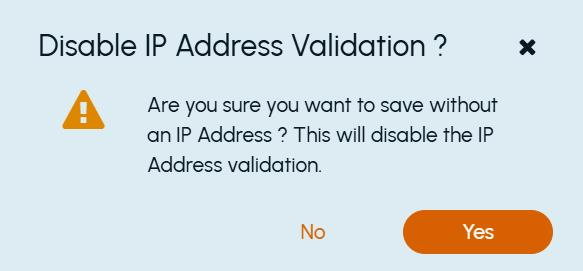 Specify the range of sequential IP Addresses that are allowed to access APIs via current configuration.
IP addresses outside of that range are not permitted to access the API. Note: Only IPv4 addresses are supported in this release. Select at least one of the checkboxes (IP Address or IP Address Range) and provide valid IP values for the same. If neither IP Address nor IP Address Range is selected, IP address validation is disabled, allowing unrestricted API access. In such cases, a confirmation message is displayed before saving the configuration. Primary and Secondary API Key After saving the reporting endpoint configuration, the application automatically generates primary and secondary API keys and saves them to the reporting endpoint configuration. API callers need to specify any of these API keys to access these APIs. Note: The primary and secondary API keys are provided so that if you want to replace any of the keys, you can use another one without experiencing any downtime. Endpoint Base URL After saving the reporting endpoint configuration, the application generates the Endpoint Base URL automatically. API callers must use this URL as the starting point for accessing API. Ensure that the configured reporting endpoint is listed on the Reporting Endpoint tab. If required, click the Refresh icon. The application masks primary and secondary keys for security reasons. -
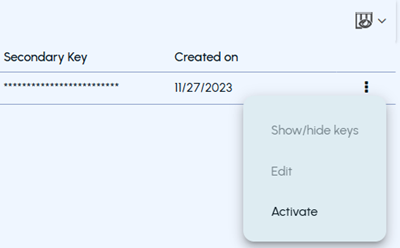
Click the Action menu (⋮) in the same row to perform the following actions:
-
To view or hide the keys, select Show/hide keys.
-
To copy the base URL, primary key, and secondary key, click the Copy icon in the respective column, or click the reporting endpoint name and copy the required information.
-
To edit the reporting endpoint configuration, select Edit. Modify the configuration as needed and click Save.
-
To regenerate the API keys, click Regenerate adjacent to the primary and secondary API key fields.Note: API keys can be regenerated for the active reporting endpoints only.
-
To suspend the active reporting endpoint, select Suspend to block access to the Reporting APIs. Specify the reason for suspending the reporting endpoint and click Suspend.
-
To activate the suspended reporting endpoint and regenerate primary and secondary keys, select Activate.
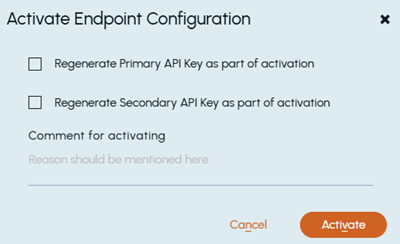
Select the primary and secondary API key generation check boxes as needed. Specify the reason for activating the reporting endpoint and click Activate. The application displays the date of expiry for these API keys. -
Authentication
To ensure the security and integrity of data access, the Reporting API requires authentication. Authentication is used to verify the identity of the requesting client or application and determine whether it has the necessary permissions to access the API resources. There are two primary authentication methods supported for this API:
API Key authentication
Upon configuring the reporting endpoint API, a Base URL, a primary and secondary API Keys are generated. Include either primary or secondary API key in the X-API-Key header of your API requests.
For example,
X-API-Key:<Primary or Secondary API Key>
Basic authentication
Basic Authentication is a method where API clients provide a username and password with each request. Users use an encoded string in the Authorization header for this method. The recipient of the request uses this string to verify the users' identity and their access rights to a resource.
For example,
Authorization: Basic <Base64 encoded credentials>
To generate a Base64 encoded credentials
-
Combine the credentials (username and password) with a colon (:).Note: The username must be ReportingApiUser. The password can be either a primary or a secondary API Key provided after configuring the reporting endpoint. Use either one as your password.For example,
ReportingApiUser:32adasdf3asdcvzxcweasd -
After specifying the credentials as mentioned in the step above, generate a Base64 encoded credentials. It is required while setting authorization header.For example,
dGVuYW50OmtleQ==Therefore, requests made by this user would be sent with the following header:Authorization: Basic dGVuYW50OmtleQ==When a server receives this request, it can access the Authorization header, decode the credentials, and look up the user to determine whether access to the requested resource should be allowed.