
Adding comments to items
Just as you can assign a review mark to an item, you can also add a comment to it. In addition to text comments, you can attach one or more files when adding comments to review items. Attachments can be used to provide supporting information or additional context for reviewers.
The permissions that are assigned to you determine the types of comments that you can add. You must have the Add Own Review Comments and Add Comment Attachments permissions in order to add comments and add attachments to the comments respectively.
To add comments to an item
-
In the left navigation pane, click Review.
-
Filter the items in the review pane.For more information, see Filtering the items in the Review pane.
-
Click Apply.The application displays emails and collaboration messages from the selected departments.Note: If only the Exchange service is enabled for you, then only emails are displayed. If the MS Teams Archiving service is enabled for you, then collaboration messages are also displayed.
-
During manual review, select the item to view its details in the Preview pane.
-
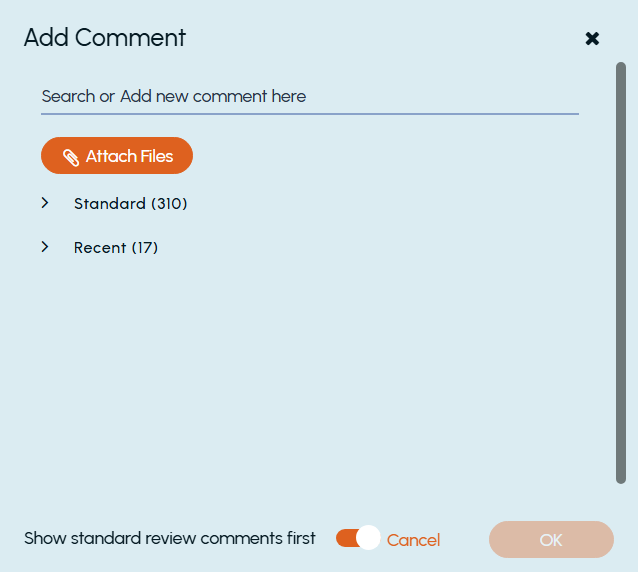
Click Add Comment.Alternatively, use the Alt+M shortcut key to add comments to an item. The Add Comment dialog box appears.
-
Expand the Standard or Recent comments group, and select a relevant predefined comment, depending on your permission level.If you do not find a relevant predefined comment, enter a new comment for the item under Search or Add a new comment here.Notes:
-
To display standard review comments before recent review comments, enable the Show standard review comments first option.
-
Attachments associated with a standard review comment are automatically added when the standard comment is selected.
-
Attachments propagated from a standard comment can be modified for individual review items before saving the comment.
-
-
(Optional) Under Attachment, click Attach File.Notes:
-
The maximum combined size of all attachments is 20 MB.
-
Supported attachment types include:
.pdf,.doc,.docx,.xls,.xlsx,.ppt,.pptx,.txt,.csv,.png,.jpg,.jpeg,.gif,.bmp,.tiff,.msg,.eml, and.zip. -
If you select an unsupported file type, the application displays an error message identifying the unsupported file type and listing the supported file types.
Browse to the required file, and click Open.Verify that the attachment is displayed in the dialog box. -
-
Click OK.The item is marked with the comment symbol. A comment indicator is displayed in the Comment present column of the item list to show that you have added the comment.
-
Click the Comments tab at the bottom of the Reading pane to view the comments assigned to an item. You can also customize the item list columns to add a column that shows the comments on items.