
Performing a search for audit records
To run a search for audit records
-
In the left navigation pane, click Audit viewer.
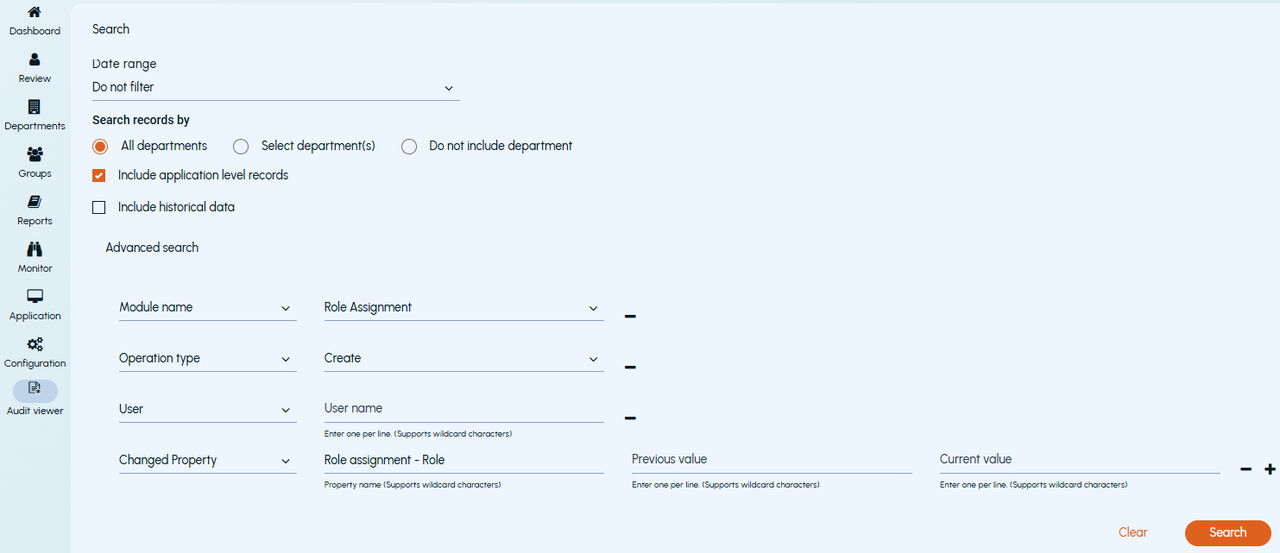
The Audit Viewer screen is displayed.
 |
|---|
-
In the Date range section, specify the date range for the audit records that fall in this duration.
The options are as follows:
-
Specific date range \- Specify the date and time duration to search audit records that were sent or received during the selected period.
-
Today / Yesterday / Last 7 days / Last 14 days / Last 28 days \- Search audit records that are created today, yesterday, or in last 7/14/28 days.
-
Do not filter \- Do not search for audit records based on date range.
-
To search by departments, select the appropriate option:
-
All departments \- Search for audit records generated at the department level for all departments where the logged-in user has permission to view audit information
-
Select department(s)\- Search for audit records for specific departments or exception departments. If you select this option, the Selected departmentssection appears. Only those departments where the logged-in user has permission to view audit information are displayed. Click** Add**to search and add departments. You can remove the listed departments from the list using the Remove link.
-
Do not include departments\- Select this option if you do not want to search for audit information generated at the department level. If this option is selected, you must select either** Include application level records or Include historical data** option.
-
Select the Include application level records check box if you want to search for audit records generated at the application level.
-
Select the Include historical data check box if you want to include audit information at the following level:
-
Deleted department/Folder
-
Closed department
-
Monitored employees whose exception status is removedNote: You can select theInclude application level recordsandInclude historical recordsif you have theView Audit informationpermission at the application level.
-
Use Advanced search options to narrow the search for audit records. The following additional options, such as operation type, user, and property are available. You can add a new search row by clicking the + icon.
Search option Description Module name Select the modules for which you want to search audit records. Insight Surveillance now includes enhanced support for authentication tracking. To initiate the two-step authentication process: 1. Select Module Name > Authentication . 2. Enter valid login credentials, or alternatively, log in through Single Sign-On (SSO). 3. After a successful login, you are navigated to the Select Customer page. Select the customer. Note: Auditing is initiated only after the customer selection is complete and the user has accessed the dashboard. For details on available modules and their supported operations for audit records, See Audit Settings Overview . Note: You can search for multiple modules in a single search; however, you cannot search for the same module name more than once. Operation type Select operations such as Create, Update, Delete, Login, and Logout. User Select audit records based on users. You can enter one user per line. Press the Enter key to add another user on next line. Audit records having any of these usernames are returned. The Username field supports wildcards and ?. You can use an asterisk () wildcard to represent zero or more characters in your search. Use a question mark (?) wildcard to represent any single character. Wildcards can be escaped using \. Therefore, *represents the character* whereas * represents the wildcard. All the provided values are matched if the search is present anywhere in the data. You cannot use special characters in the Username field. Also, special characters which appear in the middle of the text using wildcard cannot be matched. For example, a search term MyDomain*vsa will not match the data MyDomain\user1 , but will match the below search terms: - Mydomain\user1 - Mydomain user1 - Mydomain - user Changed Property Search for a property changed in an audit event using the following options. Press the Enter key to add another entry on next line. - Property name : The name of the changed property whose value you want to search. For example, Department parent or Role name. You can use a wildcard to match multiple properties. - Previous value : The previous value (before modification) of an audit record's changed property. This field supports wildcards and partial matches. - Current value : The current value of an audit record's changed property. This field supports wildcards and partial matches. Note: You can search for multiple changed properties in a single search; however, you cannot search for the same changed property twice. All the provided values are matched if the search is present anywhere in the data. You can use special characters in your search. These fields support the use of wildcard characters and ?. You can use an asterisk () wildcard to represent zero or more characters in your search. Use a question mark (?) wildcard to represent any single character. Wildcards can be escaped using \. Therefore, *represents the character* and not wildcard *. Since \ is an escape sequence, you can escape \ by using \\. For example, if a username in the Current value or Previous value fields of the property is Acme\John Doe . To search for this, you can provide any of the following search terms: - Acme* - Acme\\John Doe - Acme*John Doe - *John Note that wildcards present in the middle of search terms can match special characters. For example, in the above example, Acme*John Doe search terms match Acme\John . -
Click Search to perform the search for audit records.
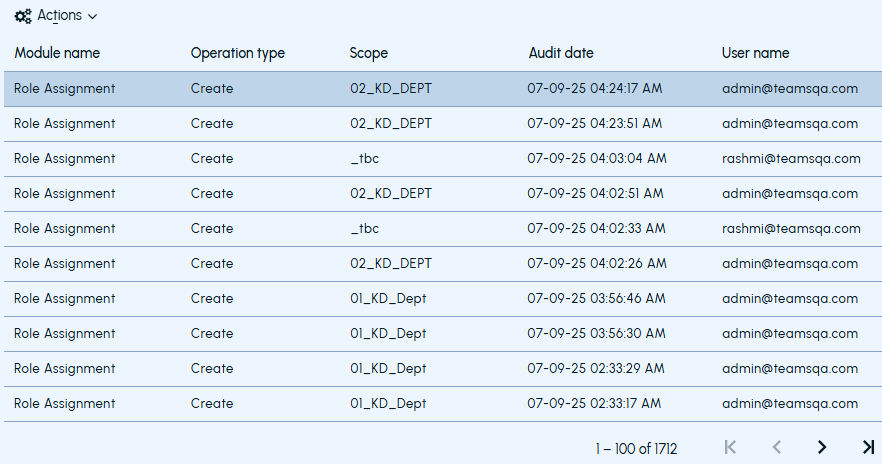
When the search is executed, the search results are displayed. A maximum of 10000 audit records can be displayed.
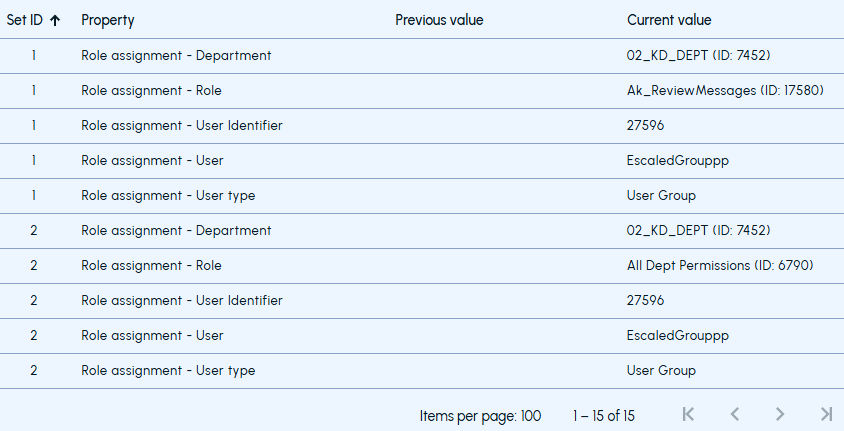
In the left panel, the audit records matching the search criteria are displayed. The newest audit records are displayed first. You can sort the records in ascending or descending order by using the sort arrow icon in the header of the columns. When you select an audit record in the left panel, its changed properties are displayed in the right pane.
 |
|---|
 |
|---|
-
From the Actions menu, clickExport as CSV if you want to export the search results.
Related information