
Enhanced Reporting (UI mode)
Arctera Surveillance introduces UI-based Enhanced Reporting for creating, running, scheduling, and managing reports. In addition to the existing reporting APIs, this feature now allows users to generate and manage reports directly from the application without manually invoking APIs.
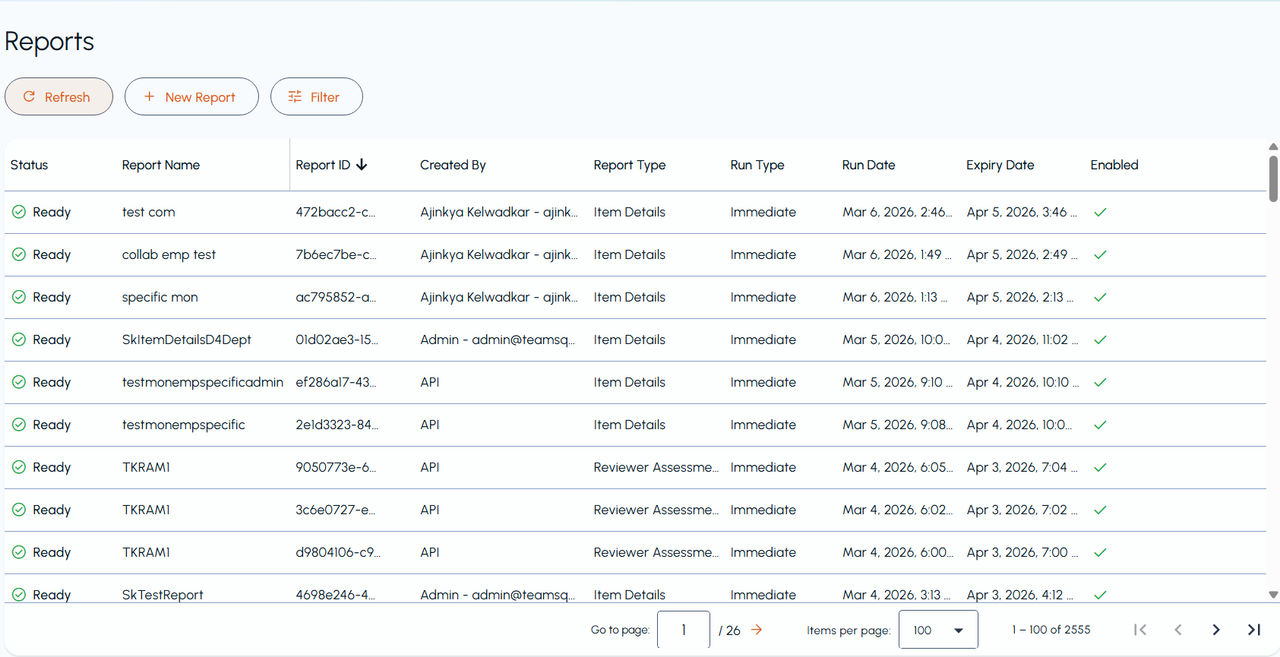
To access enhanced reporting in UI mode, click Enhanced Reporting option in the left navigation panel. The Enhanced Reporting interface opens in a new tab and displays a list of existing reports.
 |
|---|
Access and Permissions
Users need the following permissions to create reports from Enhanced Reporting user interface:
-
Manage Enhanced Reports permission at Application level
-
Search Capture permission at Department level granted in at least one department
The permissions can be accessed through Application tab > Roles. The users with these permissions can:
-
Access the Enhanced Reporting UI
-
View all departments available for reporting
-
Create and manage reports across departments
Report List View
The report list displays all reports created through:
-
User Interface (labeled using username), and
-
Reporting APIs (labeled as API)Note: For legacy reports created through user interface in earlier releases, the label displays 'User' instead of the actual username.
This distinction helps users identify how a report was created, especially when reports are consumed by external tools such as Power BI or Tableau.
Each report entry includes details such as:
-
Status
-
Report name
-
Report ID (can be copied for sharing)
-
Created by (User or API)
-
Report type
-
Run type (Immediate or Schedule)
-
Run date
-
Expiry date
-
Enabled
Action buttons (Edit, View Runs, and Download) appear on hover only for reports created through the user interface. No action buttons are displayed for API-generated reports.
Note: Once a report has expired (after its expiry date), theDownloadbutton is no longer available.
A Refresh option allows users to reload the report list to view the latest status updates.
Filtering the Reports
When a large number of reports exist, users can narrow down the list using available filters, including:
-
Report name
-
Report type (Item Details, Item Metrics, Evidence of Review, Item List and Filter Summary, etc.)
-
Report Enabled Status (All, Enabled, Disabled)
-
Run status (Queued, Processing, Ready, Failed, Retry Queued, Scheduled)
-
Run Start Date
-
Run End Date
-
Report ID
-
Run Type (Immediate, Schedule)
Run Types
Enhanced Reporting interface supports two run types:
-
Immediate Run
-
The report runs once, immediately after submission.
-
Only a single execution is created.
-
Run can be requeued or downloaded.
-
Requeue is not available for Item List and Filter Summary reports.
-
-
Schedule Run
-
The report runs automatically based on an existing report-specific schedule.
-
Schedules must be created in advance under Configuration > Schedules > New Schedule > Scheduled for: Report.
-
When scheduling for a report, user can opt for:
-
\- Daily or weekly execution
\- Hour-based frequency only (Minute-level schedules are not supported for reports.)
-
Only schedules created for Report are available for selection.
-
An eye icon allows users to view all executions associated with a schedule.
-
Each execution appears as an individual entry in the report list.
-
Individual runs can be requeued or downloaded independently.
Creating a Report
-
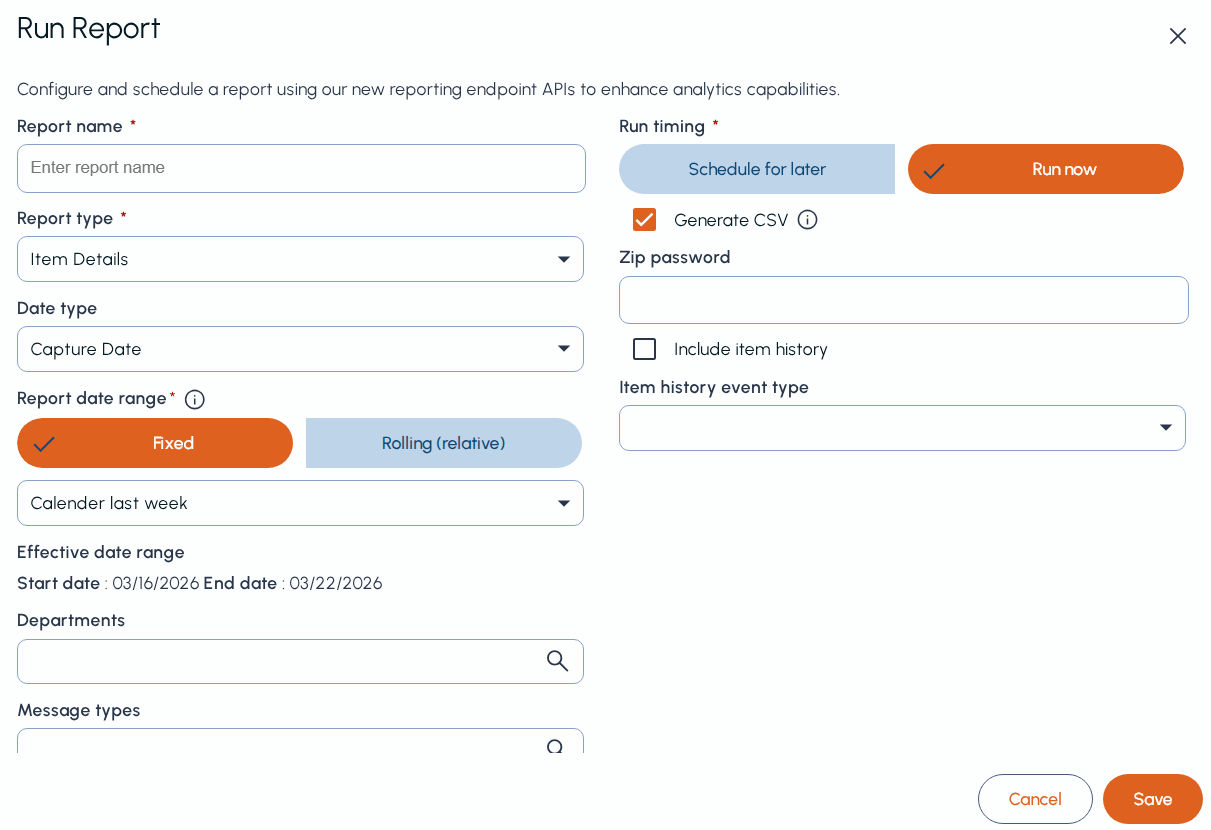
To create a new report, click New Report. The Run Report window is displayed.
-
Provide the following parameters:
-
Report Name
-
Report Type
-
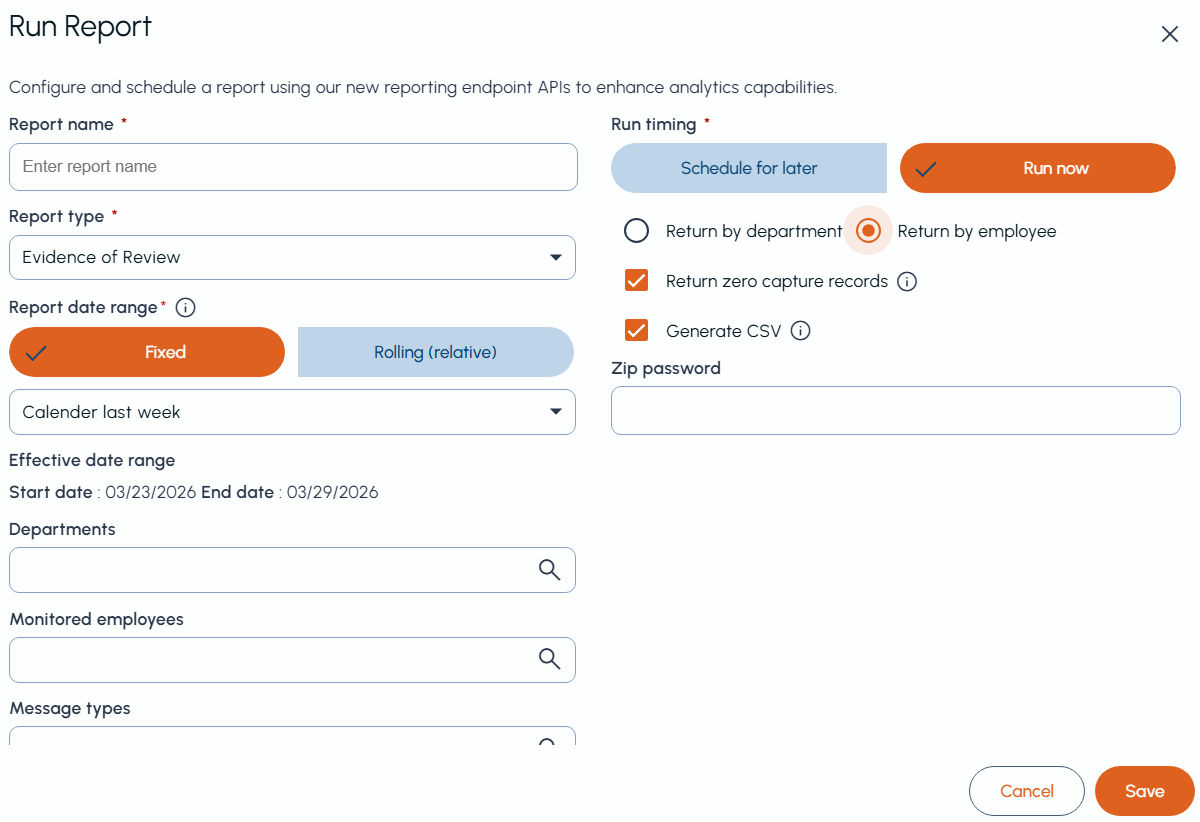
The report creation dialog dynamically updates to show the other report filters based on the selected report type.
 |
|---|
Notes :
-
1\. Currently, Arctera Surveillance supports only Item Details , Item Metrics , and Evidence of Review report types for report generation through the Enhanced Reporting UI.
-
2\. For Item Metrics report type, when the report is generated by department, results are returned only up to the previous day. Results for the current date are not included.
-
Date Type (in case of Item Details report type)
-
Report Date Range
\- Fixed date range
\- Rolling date range
-
Departments
-
Message type
-
Monitored employees
-
Message direction
-
Capture types
-
Run Timing
\- Schedule for later i.e. Schedule
\- Run now i.e. Immediate
-
Select Generate CSV option to export the selected report data as a CSV file.Note: For Item Details, Item Metrics, and Evidence of Review reports generated through Enhanced Reporting (UI mode), the CSV output includes the input parameters used for report generation.
-
Provide a password for the ZIP file to be exported.
-
Click Save.
-
Refresh the report list to view the new report request.
Re-run, Edit and Download Reports
At the end of the report list entry, you can find the following options:
Re-run (Requeue)
-
Available only for Immediate reports.
-
Opens the report creation dialog with pre-filled values.
-
Users can modify a report name and update filter criteria.
-
Report type cannot be changed.
Edit
-
Available only for Schedule reports.
-
Allows updating report name, schedule, and filter criteria.
-
Past executions remain unchanged; updates apply only to future runs.
Download
-
Expired reports cannot be downloaded.
-
Reports can be downloaded only in CSV format.
-
The UI does not display report data or visualizations.
-
Users can open downloaded CSV files in external analytics tools such as Excel, Power BI, or Tableau.
Related information