
Item Details Async API
| ItemDetailsAsync | This API submits the report generation request which executes asynchronously. The result of this API contains the identifier for the report, status, and location for retrieving the report data. |
|---|---|
| This report displays items that have been archived and discovered within the Arctera Surveillance application. It includes metadata such as subject and author, as well as a history of actions performed on the item, including label assignment, marking, escalation, appraisal, and commenting. | |
| The report identifier and locations in the result can be used to track the report generation operation. | |
| Note: If the number of records in the report exceeds 400,000 records, the result will be truncated. The extra records beyond the limit (400,000) are not included in the report. If the result is truncated, refine the filter criteria to narrow down the number of records and retrieve more specific data. | |
To use the ItemDetailsAsync API, follow the steps below:
-
Call the ItemDetailsAsync API to submit a report generation request.
This asynchronous API supports GET and POST query methods. Use any of the following as needed:
-
GET https://<Reporting endpoint base URL>/OData/ ItemDetailsAsync?ReportName=<Name of the report>&StartDate=<YYYY-MM-DD>& EndDate=<YYYY-MM-DD> -
POST https://<Reporting endpoint base URL>/OData/ ItemDetailsAsync
Sample Input
-
GET https://<Reporting endpoint Base URL>/odata/ ItemDetailsAsync?ReportName=<Name of the report>&StartDate= <YYYY-MM-DD>& EndDate=<YYYY-MM-DD>&DateType=CaptureDate or ItemHistoryDate& Departments=[<DeptID1>,<DeptID2>,...]&MessageTypes=[<MessageType ID1>,< MessageType ID2>,...]&MonitoredEmployees=[<MonitoredEmployees ID1>,< MonitoredEmployees ID2>,...]&IncludeItemHistory=[True or False]& ItemHistoryEventType=[1, 2, 3, 4, and/or 5] -
POST https://<Reporting endpoint base URL>/OData/ItemDetailsAsync
ItemDetailsAsyncAPI - URL Parameter/Filters
The following parameters/filters can be used with the ItemDetailsAsync API when invoked using the GET and POST methods. The system uses the AND operator between the filters to return the result based on the specified filters.
| ReportName | Mandatory | Specify the name of the report you want to generate. |
|---|---|---|
| Limitations | ||
| - The report name can be up to a maximum of 256 characters long. | ||
| - Special characters are not allowed; only alphanumeric values are permitted. | ||
| StartDate | Mandatory | StartDate refers to the beginning of the date range used to filter items in Arctera Surveillance. The interpretation of this filter depends on the selected DateType\: |
| - If DateType = CaptureDate, StartDate refers to the date the items were captured or ingested into Arctera Surveillance. | ||
| - If DateType = ItemHistoryDate, StartDate refer to the dates when specific actions - such as commenting, labeling, or escalation - were initially performed on the items. | ||
| Data Type | ||
| Date in the YYYY-MM-DD format that is StartDate. | ||
| Limitations | ||
| For the cloud-based application, a maximum of one year duration is allowed. | ||
| EndDate | Mandatory | EndDate refers to the end of the date range used to filter items in Arctera Surveillance. The interpretation of this filter depends on the selected DateType\: |
| - If DateType = CaptureDate, EndDate refers to the date the items were captured or ingested into Arctera Surveillance. | ||
| - If DateType = ItemHistoryDate, EndDate refer to the date when specific actions - such as commenting, labeling, or escalation - were finally initially performed on the items. | ||
| Data Type | ||
| Date in the YYYY-MM-DD format that is EndDate. | ||
| Limitations | ||
| For the cloud-based application, a maximum of one year duration is allowed. | ||
| DateType | Optional | Specify the date type to return the count of item IDs based on their capture date or the item history date. |
| Select any of the following options as required: | ||
| - CaptureDate This option is selected by default. It is the specific date on which the item is captured into the Arctera Surveillance application. If you select this option, the result includes items captured within the specified date range inside surveillance, along with the metadata and complete history of those items. | ||
| - ItemHistoryDate Select this option if you want to get item count by the item history date. It is a specific date, falling within the range of the StartDate and EndDate, on which the item's historical event occurred. If you select this option, the result includes items captured within the specified date range inside surveillance, along with the metadata and complete history of those items. | ||
| Data Type | ||
| String. | ||
| Limitations | ||
| For the cloud-based application, a maximum of one year duration is allowed. | ||
| Departments | Optional | Specifies the departments to which the item belongs and returns item counts for items within that department. |
| Data Type | ||
| JSON array of integers id (identifier fields) that is Department IDs. | ||
| Limitation | ||
| As an input, this API can pass maximum of 1000 Departments IDs. | ||
| - To include results for all departments of a specified customer in a report, do not specify any department IDs in a query. | ||
| - To include results for specific departments of a specified customer in a report, specify department IDs in the query. | ||
| Note: To get the Department IDs, SeeDepartments API. Refer to thedepartmentIdfield only. | ||
| MessageTypes | Optional | Specifies the type of captured items and returns item counts for items that have the specified message type. |
| Data Type : JSON array of integers 'id'(identifier fields) that is MessageTypes IDs. | ||
| Limitation : As an input, the ItemDetails API can pass maximum 100 MessageTypes IDs on a single page. | ||
| MonitoredEmployees | Optional | This field specifies the monitored employee IDs for which the report has to be generated. |
| For example, if a department has 10 monitored employees but only 2 are specified in this filter, the report will include item counts for only those 2 monitored employees. | ||
| Note: | ||
| - The MonitoredEmployee field is available only for items captured through Searches. | ||
| - For items captured through Sampling, this MonitoredEmployee field will remain null. No value is provided in the report. | ||
| - To include all monitored employees in a report, do not specify any monitored employee IDs in a query. | ||
| - To include results for specific monitored employees in a report, specify monitored employee IDs in the query | ||
| - The valid values of monitored employees are the IDs of any monitored employee from the Arctera Surveillance MonitoredEmployee ID list. This ID list can be fetched from the MonitoredEmployee API endpoint. See Monitored Employees API . Refer to the MonitoredEmployeeId field only. | ||
| Data Type : Integer ID of the user. | ||
| Limitation | ||
| As an input, this API can pass maximum of 1000 MonitoredEmployee IDs. | ||
| IncludeItemHistory | Optional | Determines whether the history of items is included or excluded in the output. |
| - Set this value as False to exclude history of items from the output. By default this value is set to False . | ||
| - Set this value as True to include history of items in the output. | ||
| ItemHistoryEventType | Optional | Includes or excludes the item history event type in the output based on the value set for the IncludeItemHistory field. |
| - | - | 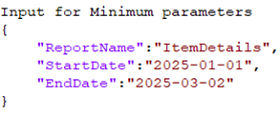 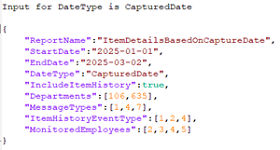  - If the DateType = CapturedDate (default) and IncludeItemHistory = False , then, the report compares dates with the item's CaptureDate and does not include item history in the results. Refer to the sample scenario below. - If the DateType = CapturedDate (default) and IncludeItemHistory = False , then, the report compares dates with the item's CaptureDate and does not include item history in the results. Refer to the sample scenario below. |
| - If the DateType = CapturedDate (default) and ItemHistoryEventType is set to 1 (Appraisal), 2 (Comment), or 4 (Action Status - Mark)), then, the report returns: Items are captured within a specified date range. From the captured items, results are further filtered based on event type (e.g., Appraisal , Comment , Mark ). For the filtered items, full metadata and history are returned. Refer to the sample scenario below. | ||
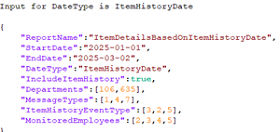
| - If the DateType = ItemHistoryDate and ItemHistoryEventType is set to 2 (Comment), 3 (Escalation), or 5 (Action Status - Label), the report returns: Items with comment, escalation, or label actions performed between the specified start and end dates are retrieved. From these results, full metadata and history are returned for each item. Refer to the sample scenario below. Items that have comment, escalation, or label actions performed between the specified start and end dates. From that result, full metadata and history is returned for those items. | ||
| - | - | Possible values of item history event type are\: |
| - 1 - Appraisal | ||
| - 2 - Comment | ||
| - 3 - Escalation | ||
| - 4 - Action Status - Mark | ||
| - 5 - Action Status - Label | ||
| - 6 - Action Status - Preview | ||
| Data Type : Integer ID of the item. | ||
| Limitation | ||
| As an input, this API can pass maximum of 10 ItemHistoryEventType IDs. |
Scenario 1: A new request to submit the report when DateType = CaptureDate
Sample input:
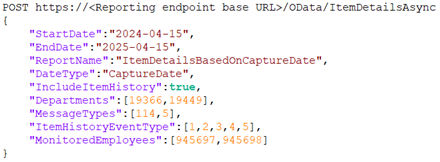
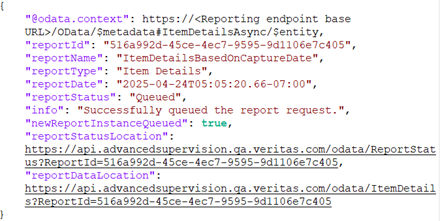
Sample response:
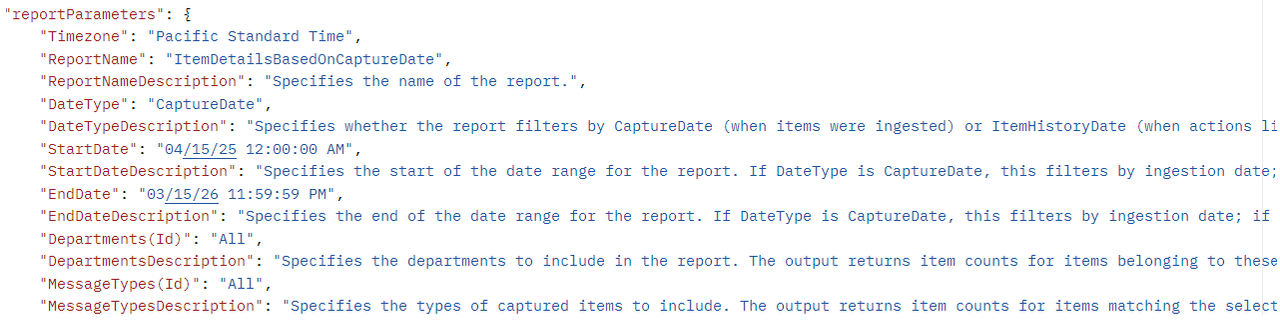
Note: The API response for Item Details, Item Metrics, and Evidence of Review reports also include the input parameters specified during report generation as shown in the image below.
 |
|---|
Refer to the table below for details on the attributes included in the ItemDetailsAsync API response.
| Name | Description |
|---|---|
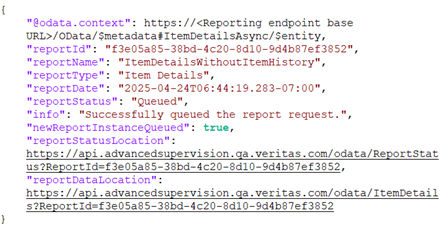
| reportId | Displays report ID. It is generated upon successful execution of API. |
| reportName | Displays report name. It is generated upon successful execution of API. |
| reportType | Displays the report type as Item Details . |
| reportDate | Displays the date of report generation after successful execution of API. |
| reportStatus | Displays report status. For more information on statuses, See Report Status API . |
| info | Displays a message if the report request has queued successfully or not. |
| newReportInstanceQueued | Specifies whether a new report generation request has been submitted or not. The Rate Limiting feature restricts submission of multiple requests with identical input parameters if attempted within one minute. |
| It returns the following values: | |
| True : The value is shown as True , if the new report request has been queued successfully. | |
| False : The value is shown as False , if the input parameters of the current request are identical to the parameters of the already submitted request within one minute , a new report will not be queued. As a result, the details of the existing report request are returned. | |
| reportStatusLocation | Displays a URL with report ID. |
| To view the status of this report, use the same URL. | |
| reportDataLocation | Displays a URL for the location of report data. |
| To access the report data, use the same URL. |
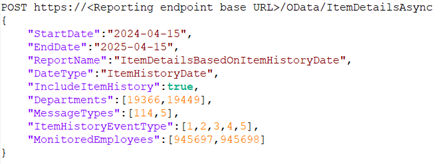
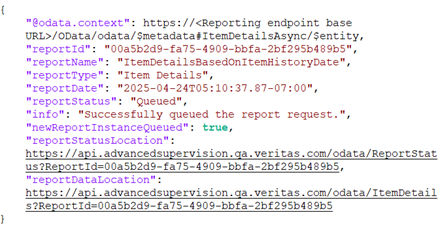
Scenario 2: A new request to submit the report when DateType = ItemHistoryDate
Sample input
Sample response:
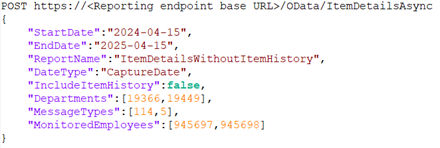
Scenario 3: A new request to submit the report when IncludeItemHistory = False. ItemHistoryEventType is ignored/excluded from the report.
Sample request:
Sample response:
-
Call the ReportStatus API to get the status of the ItemDetailsAsync API report. See Report Status API.
-
Once the report is ready, call the ItemDetails API to retrieve the report data from the asynchronous API. See Item Details API.
Related information