
Configuring a reporting endpoint
To configure a reporting endpoint, you must have a System Admin role or the Configure Reporting API Endpoint permission to your role. If you do not have this permission, contact your system administrator.
In this release, only one reporting endpoint configuration can be created. After the endpoint is configured, you can change the configuration, regenerate API keys, and activate or suspend the endpoint as needed.
To configure a reporting endpoint
-
In the left navigation pane, select Configuration>Reporting Endpoint tab.
-
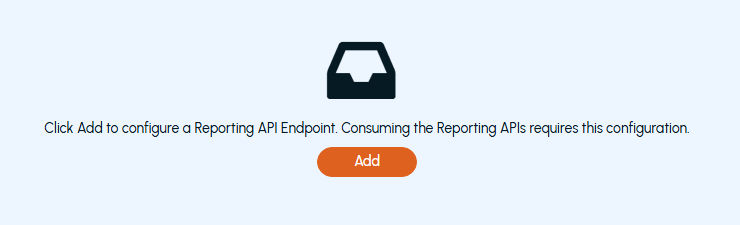
Click Add.
-
On the Add New Endpoint Configuration page, specify the following details and clickSave.
Name Specify a unique name for the reporting endpoint configuration. Description Provide a brief description of the reporting endpoint configuration. Scope Decides which APIs are accessible via current configuration. By default, it is set to All API . IP Address 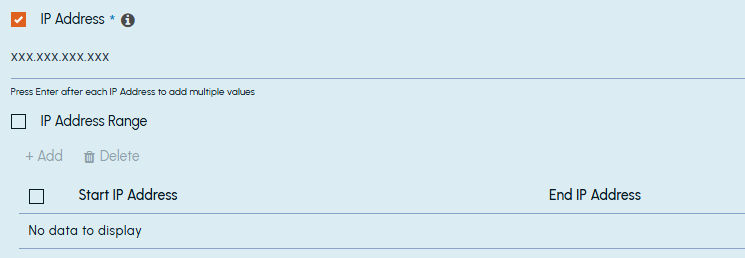 Specify individual IP Addresses that are allowed to access APIs via current configuration.
Note: Only IPv4 addresses are supported in this release. - - IP Address range 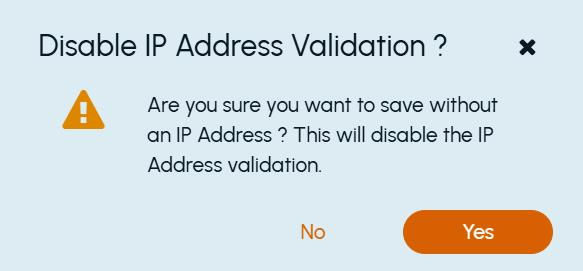 Specify the range of sequential IP Addresses that are allowed to access APIs via current configuration.
IP addresses outside of that range are not permitted to access the API. Note: Only IPv4 addresses are supported in this release. Select at least one of the checkboxes ( IP Address or IP Address Range ) and provide valid IP values for the same. If neither IP Address nor IP Address Range is selected, IP address validation is disabled, allowing unrestricted API access. In such cases, a confirmation message is displayed before saving the configuration. - - Primary and Secondary API Key After saving the reporting endpoint configuration, the application automatically generates primary and secondary API keys and saves them to the reporting endpoint configuration. API callers need to specify any of these API keys to access these APIs. Note: The primary and secondary API keys are provided so that if you want to replace any of the keys, you can use another one without experiencing any downtime. Endpoint Base URL After saving the reporting endpoint configuration, the application generates the Endpoint Base URL automatically. API callers must use this URL as the starting point for accessing API.
Ensure that the configured reporting endpoint is listed on the Reporting Endpoint tab. If required, click theRefresh icon. The application masks primary and secondary keys for security reasons.
-
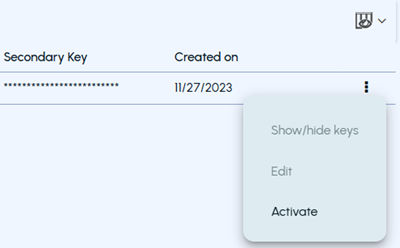
Click the Action icon (three vertical dots) in the same row to perform the following actions:
-
To view or hide the keys, select Show/hide keys.
-
To copy the base URL, primary key, and secondary key, click the Copy icon in the respective column, or click the reporting endpoint name and copy the required information.
-
To edit the reporting endpoint configuration, select Edit. Modify the configuration as needed and click** Save**.
-
To regenerate the API keys, click Regenerate adjacent to the primary and secondary API key fields.Note: API keys can be regenerated for the active reporting endpoints only.
-
To suspend the active reporting endpoint, select Suspend to block access to the Reporting APIs. Specify the reason for suspending the reporting endpoint and clickSuspend.
-
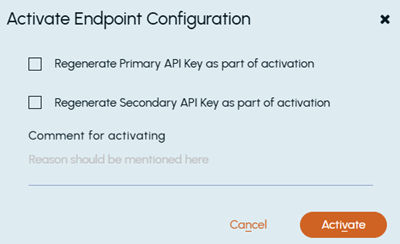
To activate the suspended reporting endpoint and regenerate primary and secondary keys, select Activate.
-
Select the primary and secondary API key generation check boxes as needed. Specify the reason for activating the reporting endpoint and click Activate. The application displays the date of expiry for these API keys.
Related information