
Searching departments
Upon accessing the Department page, a list of all the available departments appears.
To quickly search a required department
-
In the left navigation pane, click Departments.
-
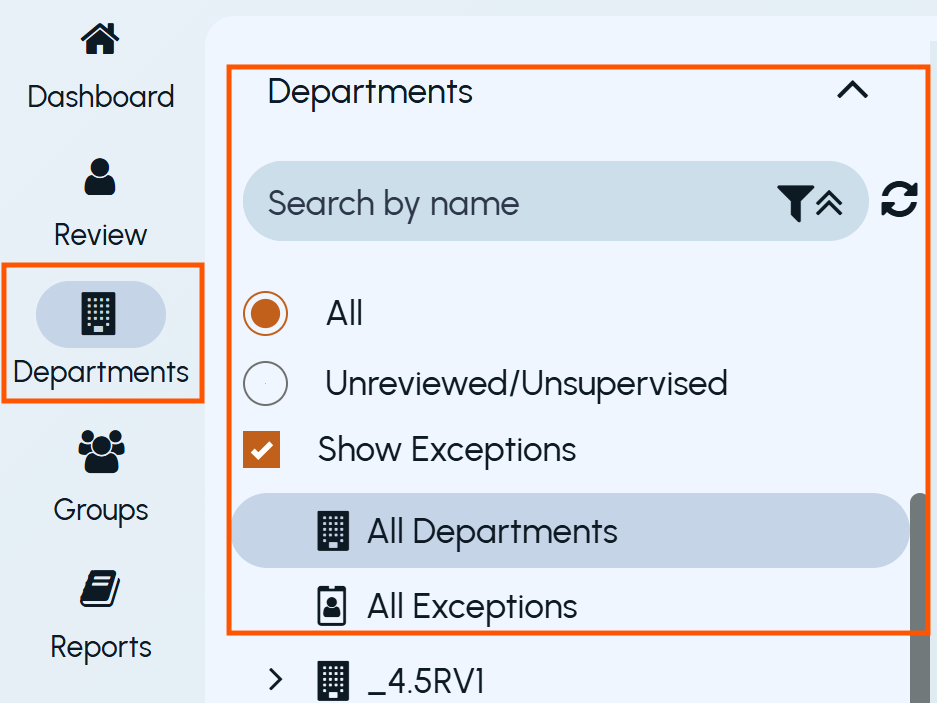
Expand the Departments section if it is not expanded by default, and click the Apply filter icon to view the filtering options.Note: A closed department will only be visible if any of its child departments are open.
-
Perform the following steps as required:
-
In the Search by name field, type name of a department or department owner containing items you want to search.
-
Click Show extra filtering options to see the following filters:
-
Select All to search a department within all departments.
-
Select Unreviewed/Unsupervised to search a department where no department reviewer or compliance supervisor is assigned.
-
Select Show Exceptions to search for exception employees. Type a name of exception employee.
-
Select Show Reviewers to search for the specific reviewers. Type a name of a reviewer.
-
-
-
Click the Apply Filters icon to apply the search criterion.The application displays a summary of your search result.
-
Alternatively, select the All Departments node to obtain a summary of all the available departments. To view the departments based on their closed or open status, expand the filter section and choose the respective option from the Department Status drop-down list as shown in the sample image below:
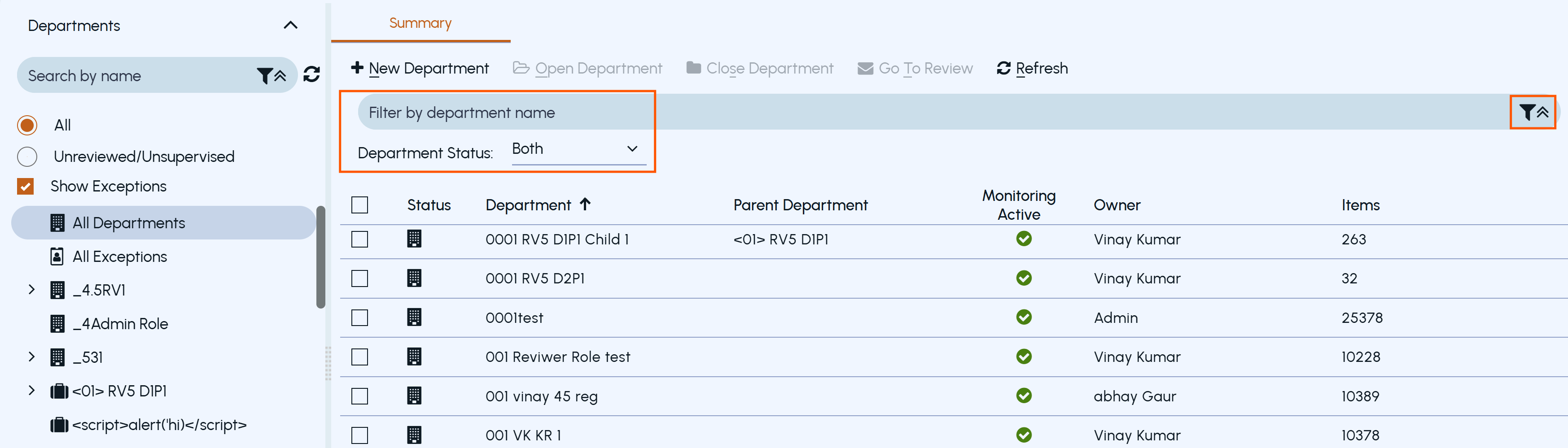 The application displays the summary of departments based on their status.