
TEMPLATE- Reviewer Assessment Metrics View Report Data
-
Open the TEMPLATE- Reviewer Assessment Metrics - View report Data.pbit file, and specify the following details.
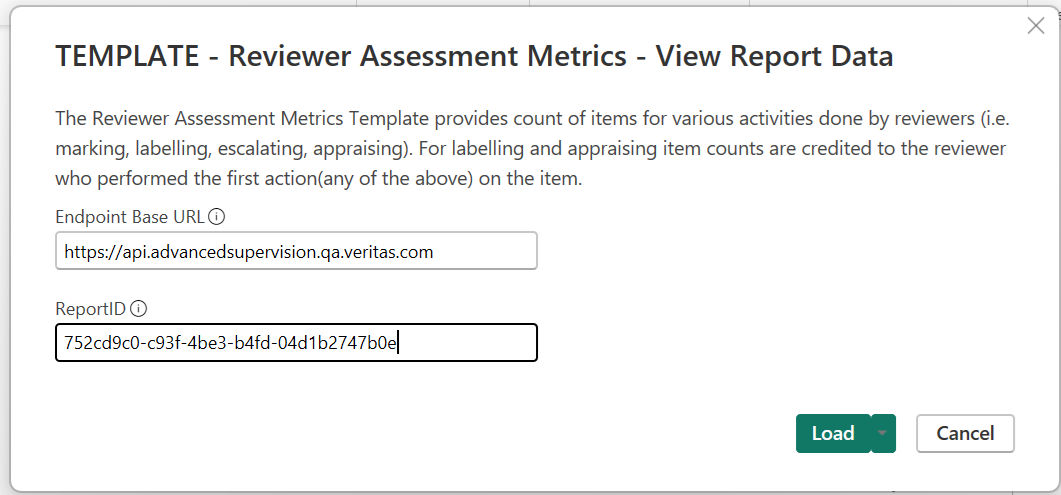
Endpoint Base URL Enter the REST API endpoint URL. For example, https://Report ID Enter the Report ID that is generated during execution of ReviewerAssessmentMetricsAsync API report or the TEMPLATE- Reviewer Assessment Metrics - Submit Report Request template. -
Click Load.
-
Set the privacy organizational or public for each selected data source.
For more information, See Guidelines for using Insight Surveillance templates with Microsoft Power BI Desktop.
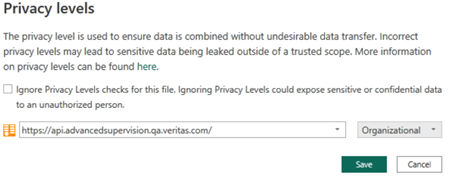
-
Click Save.
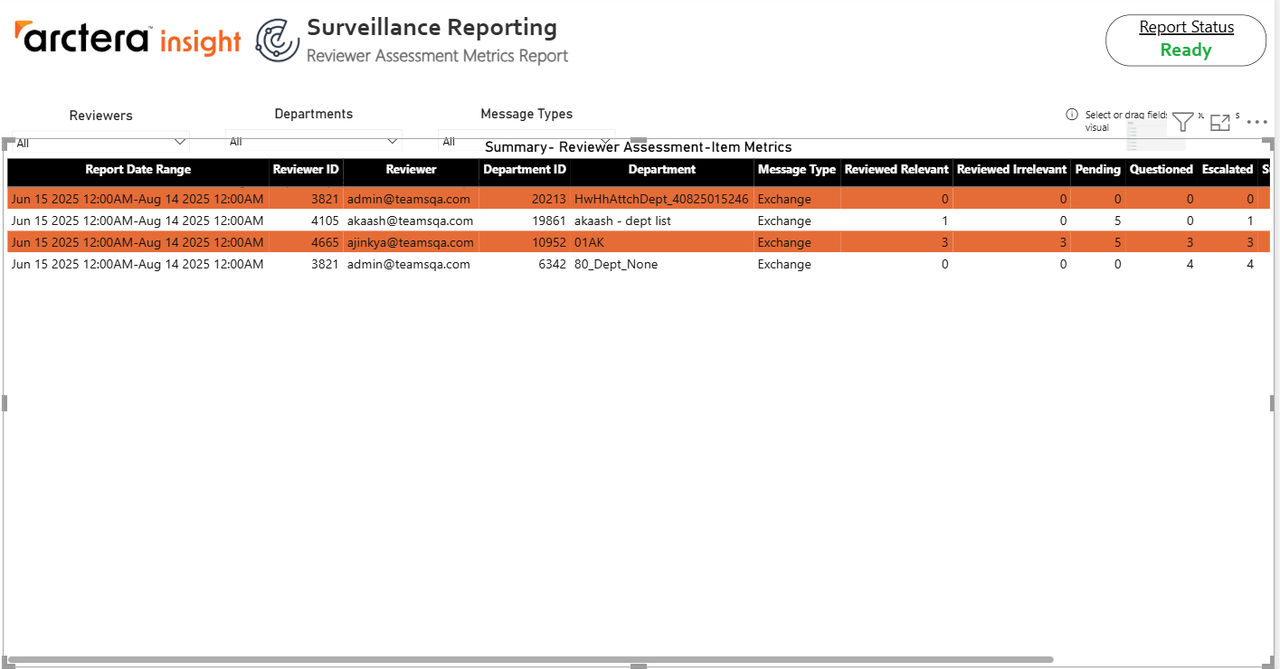
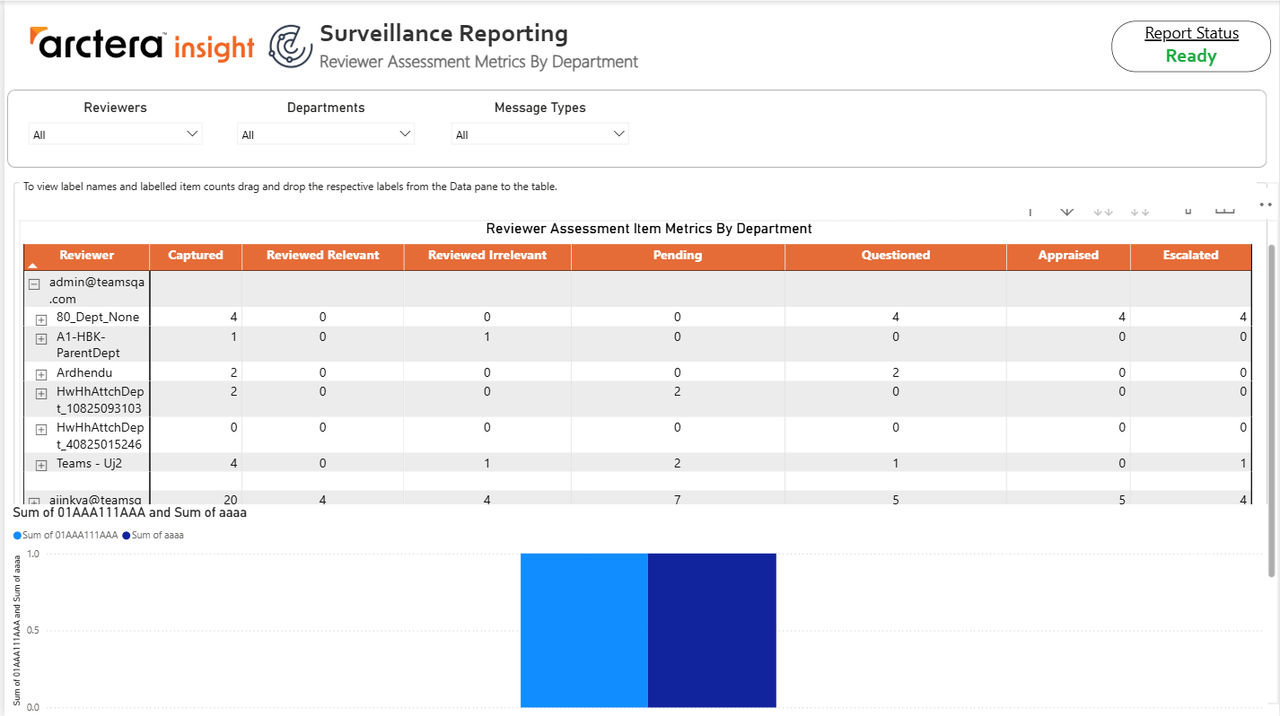
Upon successful processing, the application displays a report for the retrieved data of the corresponding API endpoint.
 |
|---|
 |
|---|
To help you better visualize and understand the API Endpoint reports, refer to sample images of reports.
Note: Since labels are custom-created and not predefined, the Power BI UI cannot automatically select them to display corresponding item counts. Customers need to manually drag and drop the label fields, remove summarization, and then add them to the Power BI table after the data is loaded. Alternatively, if customers do not intend to use the Power BI UI and simply want the complete dataset, they can export the ReviewerAssessmentMetrics table to Excel.
Related information