
Viewing tags highlighting
Arctera Surveillance provides the option to highlight tags applied to the item you want to review. Tags are highlighted only if the items are applied with at least one tag. The tag statistics section lists the tags for which Arctera Surveillance performs highlighting.
| Arctera Surveillance supports tag highlighting in the following fields of emails\: | Arctera Surveillance does not support tag highlighting in the following fields of emails\: |
|---|---|
| - Subject | - Process date |
| - Primary email content | - Attachment count |
| - Message body (Policy condition created in Arctera Classification to classify only message body and not the attachment content. The corresponding highlights is shown in Arctera Surveillance.) | - Attachment date |
| - Attachment name | - Recipient count |
| - Attachment content | - Item size |
| - Attachment size | - Direction |
| - Attachment extension | |
| - Author | |
| - Recipient (To/Cc/Bcc) | |
| - Date | |
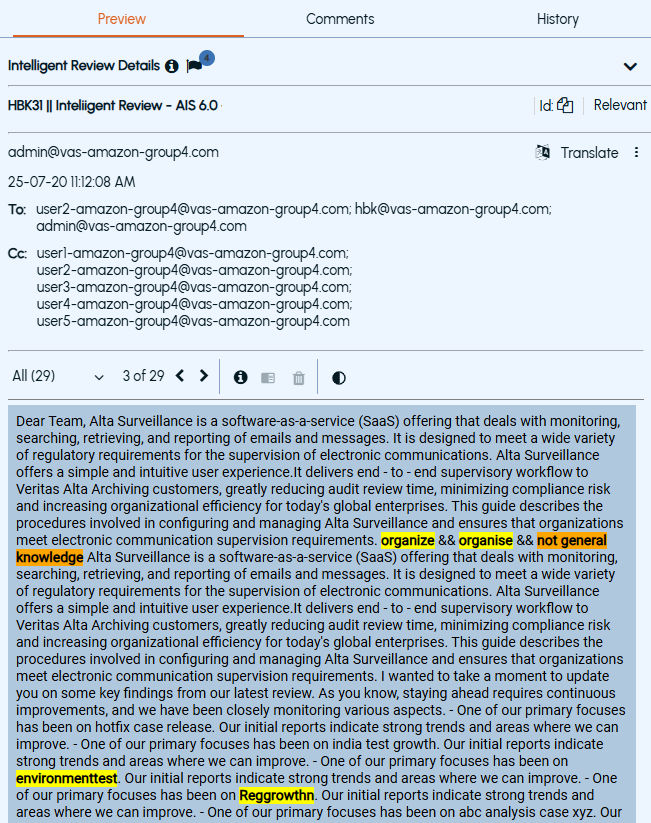
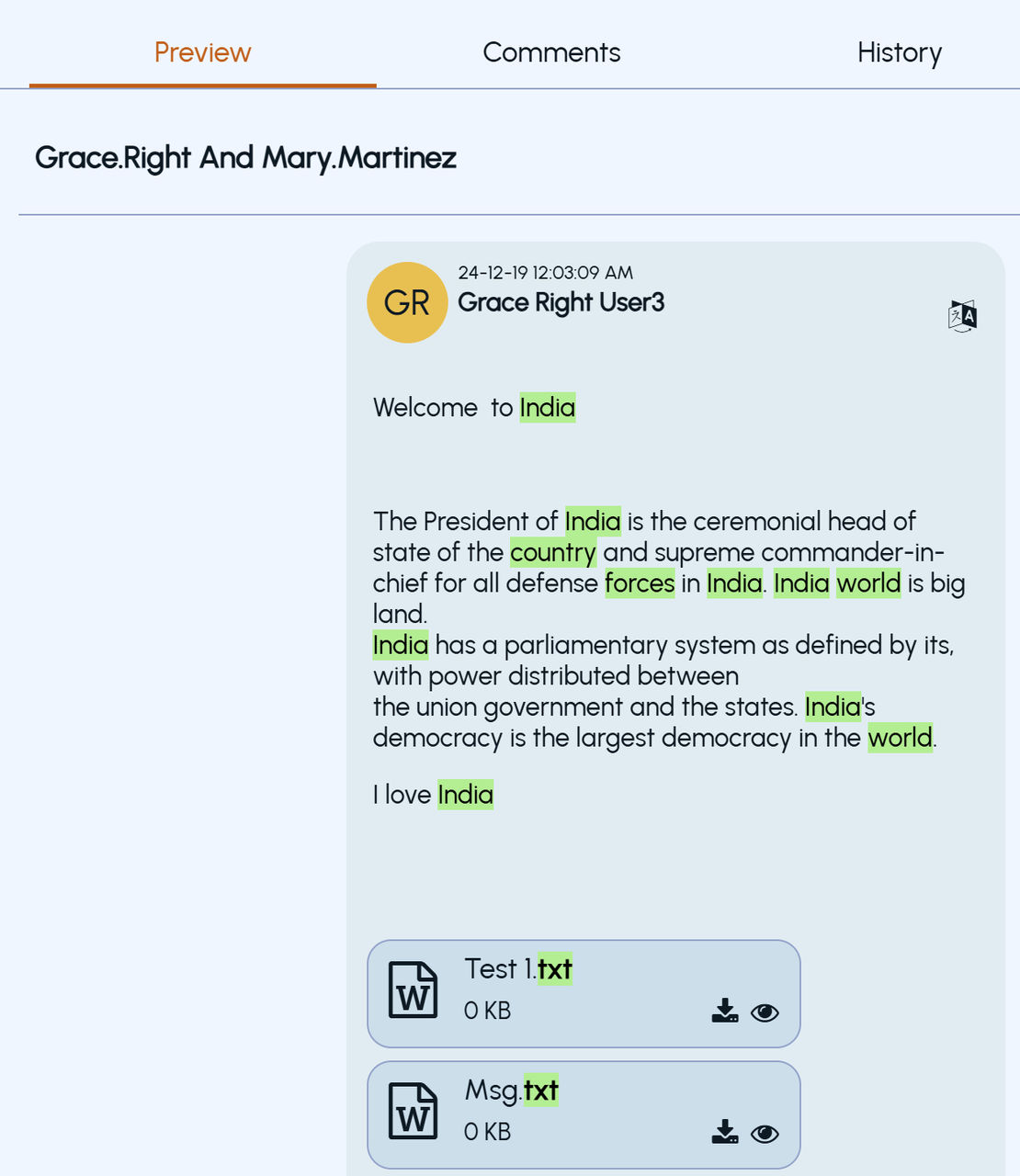
The item can have multiple tags applied to it. The hotwords and tags are highlighted in the Preview pane of emails and collaboration messages. You can hover over the highlighted content to see other tags applied to it. If the email contains the hotwords and tagged instances, the hotwords are highlighted in yellow color and the tags are highlighted in green color. The hotwords navigation option is available only for emails, and not for collaboration messages.
Note: When the tags suggested by Arctera Classification have a content match length exceeding 300 characters, Arctera Surveillance does not highlight those tags in thePreviewpane.
To view highlighted tagged content of an item
-
In the left navigation pane, click Review.
-
Search for and select the department for which you want to review items.Note: Arctera Surveillance lists all departments. You can use the filtering options to search the required department. Options include filtering by department name, exception employees, and reviewers associated with the department.
-
(Optional) To reset the filtering criteria, click Clear , and set a new criterion.
-
Click Apply.
The application displays a list of review items from the selected departments.
-
During the manual review, select the item to view its details in the reading pane.
To view tagged items, from the Filter pane in the left navigation pane, expand theTags option, and select the specific tags. The application displays only those items to which the selected tags are applied. TheTags summary column shows the tags applied to the items.
-
Navigate across the hits for tags.Note: Highlighting navigation control is shown only if at least one hotword or a tag is applied to the review item. The hotwords and the tags are highlighted in thePreviewpane of emails and collaboration messages. However, the navigation option to go to the next or previous hotword or a tag is available only for emails, and not for collaboration messages.
A sample image to show tags highlighting and navigation in email is shown below.
 |
|---|
A sample image to show tags highlighting in collaboration messages is shown below.
 |
|---|
-
In the Preview pane, click the drop-down arrow and do any the following:
-
Select All to highlight all the hotwords and all the tags in the item simultaneously.
-
Select Tags to highlight only the tagged instances.
-
This option displays the total count of matching contents corresponding to tags applied to that item. For example, Tags (2) represents two matching content found in that item corresponding to tags applied to the item. Hover over this option to see the tag names.
-
Select individual words under Hotwords to highlight only the selected hotword.
-
Click the Next arrow icon and the Previous arrow icon to navigate across the hits for tagged instances.
-
Hover over the highlighted tagged instance to view which other tags are applied to the same content.
-
To print the review item's content, click the Action icon (three vertical dots) in the upper-right corner of the Preview pane. ClickPrint and select the format and location to save the file at your accessible location.
-
To download the review item's content with the highlighted tagged instances, click the Action icon (three vertical dots) in the upper-right corner of the Preview pane. ClickDownload and select the format and location to save the file at your accessible location.
Related information