
Filtering the items in the Review pane
The search and filter options available in the Review pane provide several parameters to filter items for review.
To filter the items in the review pane
-
In the left navigation pane, click Review.
-
In the Department drop-down list, do the following steps:Note: The selections are persisted across all login sessions for the logged-in user.
-
In the Mode drop-down list, choose whether to perform a standard review of the items in the review set or an escalation review.Note: Escalation Review mode is available to escalation reviewers only. It lets these reviewers view and change review status of the items that other reviewers have escalated to them for further attention.
-
In the Dept drop-down list, select the department, or a nested department for which you want to display the items in the review set.
-
In the Items drop-down list, select a group of items you want to review.
-
The following options are available:
-
Temporary Assignment : This option allows you to temporarily reserve a predefined number of unassigned items from the review set for your current session. These items are not permanently assigned to you, but while your session is active, other reviewers cannot access or review them.
For example, if you log in and select Temporary Assignment with a limit of 200 unassigned items, you can review these items without permanently assigning them to yourself. While your session is active, other reviewers in the department cannot see or access these items. However, once you log out or end the session, any unmarked items become available again for other reviewers.
-
All Items : This option allows you to view all review items in the review set, including those assigned to other reviewers. However, using this option may lead to duplicate work if multiple reviewers mark the same items.
For example, if you select All Items , you can view every item in the review set, including those assigned to other reviewers. However, if you mark these items, you may duplicate the work of others, leading to inconsistencies. To prevent this, use this option only for browsing these items and not reviewing them.
-
In the Advanced Filter drop-down list, specify the following if needed to filter review items.
-
Item Id : This field allows reviewers to search emails and collaboration messages within specific departments using Item ID.Note: The Item ID is searchable only if the reviewer (logged-in user) has review permission for the associated department.
-
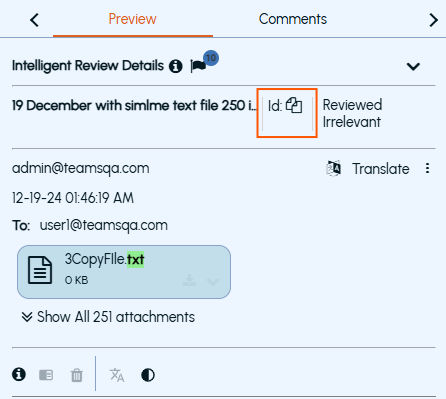
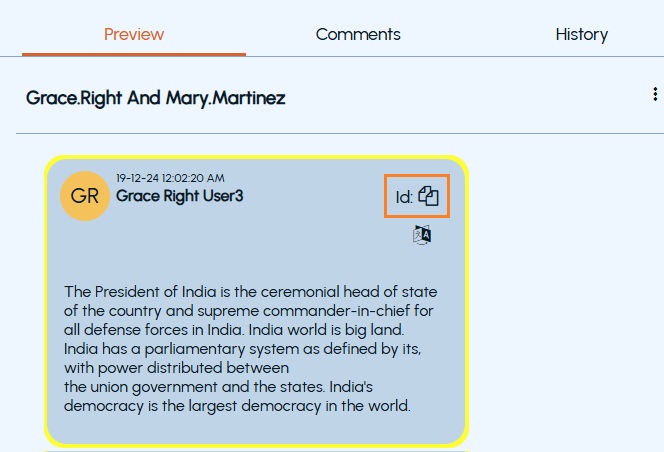
During review, when a review item is selected in the item grid, the Preview pane displays theItem ID icon. You can click the icon to copy the ID for sharing with other reviewers.
 |
|---|
 |
|---|
When you search for this Item ID using Advanced Filter , the application clears the current filter settings and displays a single item from specific department from where the item ID is shared.
Note: Item IDs generated prior to the July release are now supported and can be used for filtering and searching review items. However, these legacy Item IDs will be deprecated in future releases. If you have stored older Item IDs, it is recommended to update them with the new Item IDs.
-
Author/Domain : This field is used to search emails and collaboration messages for a specific user or email domain. Enter a full or a partial email domain that you want to search. For example, gmail, gmail.com, or @gmail.com. The application searches items from all users belonging to the specified domain.Note: While providing input for this filter, do not enter multiple authors or domains, a semicolon (;), or a string of two hyphen marks (--).
-
Subject : This field is used to search emails only, and not applicable for searching collaboration messages. Enter a word or phrase that you want to search. The application filters the emails in which the subject field contains the specified words.
-
Select Activity Details: This field is used to search items based on activities performed by users within a specified time range. You can filter results using parameters such as user, review activity date range, and action type (Mark, Escalation, Appraisal, Comment, Labels).
For a single reviewer, you can select the First Reviewer Only option to filter review items on which the chosen reviewer performed the first supported action within the specified time window.
Note: TheSelect Activity Detailsfilter is available only to users who have theApply Appraisal Statuspermission at the department level. This permission can be configured underApplication>Roles.
-
Find Similar Items : This feature allows reviewers quickly filter emails that share the same author, subject, and date. It is designed to address scenarios where organizations receive large volumes of near-identical messages. For more information, refer Bulk review using Find Similar Items section in Managing Reviews chapter.
-
In the Filter drop-down, do any of the following as required:
-
Choose the filter criteria from the default Preset options. By default, the following preset options are available:
-
All Unreviewed
-
Today's Unreviewed
-
All Unreviewed Exchange
-
All Unreviewed Instant Messaging
-
All Unreviewed Bloomberg
-
All Unreviewed Domino
-
All Messages
-
-
Expand the necessary facets and select the item classification options you want to apply.
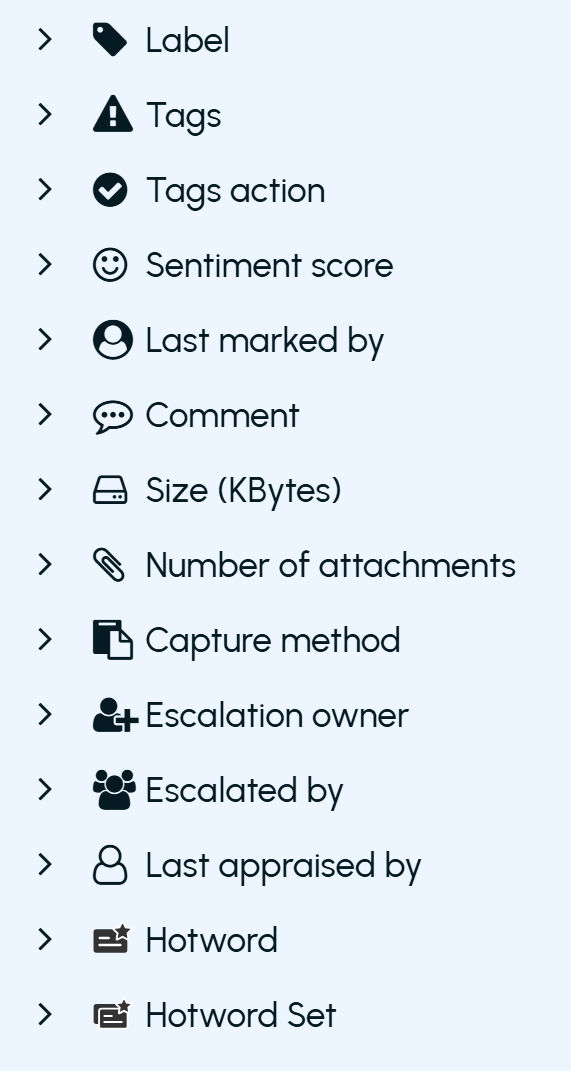
The following table lists the available filter facets.
| Facets | Description |
|---|---|
| Status | Select items by their status, like pending, reviewed, questioned, and so on. |
| Capture date | Selects items that Arctera Surveillance has captured over the specified period. The available options are - Today, Yesterday, Last 7 days, Last 14 days, and Last 28 days. |
| By default, items from last 1 year are shown when none of the above options are selected. | |
| Click Set date range to filter the items based on the date range specified. | |
| Clicking the calendar icon displays the review item count beneath the date, month, and year wise view. When selected, the application also displays day-wise, month-wise, and year-wise item counts beneath the respective dates, months, and years. If there is no items count, a hyphen (-) is displayed. For more details, See Viewing dynamic review item counts on the calendar . | |
| Date | Select items by the date on which they were created. The default options are - Today, Yesterday, and Last week. |
| The last week defines Monday to Sunday range of the last week. You can use this option to review weekly items. When you hover over the Last week option, you can view the last week Monday to Sunday date range. For example, if you are working on 18th Nov 2021, the last week dates are displayed as 8th Nov 2021 to 14th Nov 2021. | |
| Click Set date range to filter the items based on the date range specified. | |
| Clicking the calendar icon displays the review item count beneath the date, month, and year wise view. When selected, the application also displays day-wise, month-wise, and year-wise item counts beneath the respective dates, months, and years. If there is no items count, a hyphen (-) is displayed. | |
| For more details | |
| See Viewing dynamic review item counts on the calendar . | |
| See Date format support in Arctera Surveillance . | |
| Search | Select items that one or more searches have captured. |
| If there are more than 20 items, the application displays the Show all option. To view all the items, click Show all and select maximum 20 items. | |
| To select multiple items, select the corresponding check boxes. You can select items from multiple pages. You can use the Go to page field to select the available page number you want to view. Else, the application displays the message as Invalid page . | |
| The total of selected items is displayed in the bottom. To remove entire selection, click the Clear icon. To remove any of the selected items, click on the link (which is adjacent to the Clear icon), search for the employee record, and click the Remove icon. | |
| Scheduled search | Select items that one or more searches have captured according to their search schedules. |
| Hotword | Select items by the name of the hotword. The facet lists hotwords and the number of items they appear in. |
| Note: TheHotwordandHotword Setfacets are available only for tenants where the hotword statistics background service is enabled. To enable this feature, contactArctera Technical Support. | |
| Hotword Set | Select items by the name of the hotword set. The facet lists hotword sets and the number of items they appear in. |
| Author | Select items by the name of the person who sent them. |
| Archived users | Select one or more archive users for filtering items. Only items where the selected users (and their aliases) are message participants are displayed. Archived Users are defined as licensed users with a provisioned archive in the Arctera Management Console. |
| Notes : | |
| 1. Unlike Author filter, which filters items only by sender, the Archived Users filter includes items where the selected users appear as either sender or recipient. | |
| 2. This feature only applies to items captured after the April 2026 release. | |
| Escalation status | Select items by whether they have been escalated to an escalation reviewer or subsequently closed by that reviewer. |
| Appraisal status | Select items by their appraisal status. |
| The following values are available: | |
| - None - Selects the items which are not yet appraised. | |
| - Appraised - Selects the items which are marked as appraised. | |
| - Queued - Selects the items which are reviewed and selected for additional internal Quality Assurance review by a supervisor. Note: TheQueuedfeature is not enabled for all users by default. To enable it, contactArctera Technical Support. | |
| Type | Select one or more supported message types. |
| For more information on the Arctera Surveillance supported message types, See Sampling support for content sources . | |
| The available options are displayed based on the services subscribed and enabled for you. For example - | |
| - If MS Teams Archiving is enabled for you, the Teams Chat and Teams Channel options are available for filtering. | |
| - If Copilot or ChatGPT is enabled for you, the respective options are available for filtering. | |
| - If the search result has audio or video items, then the Audio-Video Transcript option is available for filtering. | |
| Direction | Select items that have traveled in the specified direction. The options are as follows\: |
| - Not specified - Select to avoid choosing any direction. | |
| - Internal - Selects items where the author and all recipients are internal to your organization. | |
| - External Inbound - Selects items where the author is external to your organization and at least one recipient is internal. | |
| - External Outbound - Selects items where the author is internal to your organization and at least one recipient is external. | |
| Predicted labels | Select items by their predicted labels. |
| Labels | Select items by their labels. |
| Tags | Select items by their tags. |
| Tags action | Select items by their tag actions. |
| Sentiment score | 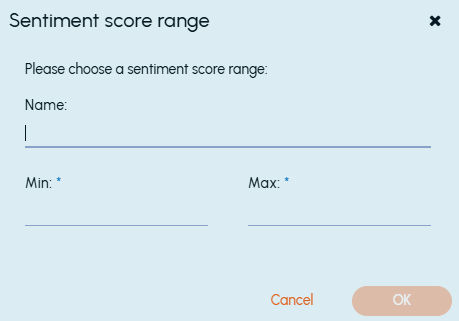 Select items based on the predefined sentiment score categories. A score in the range of 0 to 100 is assigned, where... Select items based on the predefined sentiment score categories. A score in the range of 0 to 100 is assigned, where... |
| - 0 - 39 indicates that the item expresses the negative sentiment. | |
| - 40 - 59 indicates that the item represents the neutral sentiment. | |
| - 60 - 100 indicates that the item represents the positive sentiment. | |
| To customize a different sentiment score range and use it as a preset later, click New sentiment score range . Specify the minimum and maximum score you want to capture, and provide a unique name to this preset. Click OK to save the preset as shown in the sample image below. | |
| - | - |
| Last marked by | Select items by the person who has lastly changed a review status of the items. |
| Comments | Select items to which reviewers have added comments. |
| Size | Select items by their size in kilobytes. |
| Number of attachments | Select items by the number of attachments that they have. |
| Capture method | Select items by the method that Arctera Surveillance has used to capture them and add them to the review set. The options are\: |
| - Not specified - Select to avoid choosing any direction. | |
| - Search - Select to choose items that have been captured as a result of searches. | |
| - Random Sampling - Select to choose items that Arctera Surveillance has captured and added to the review set according to your designated monitoring policy. | |
| - Guaranteed Sample Search - Select to choose the results of guaranteed sample searches. | |
| - Tags - Select to choose items that Arctera Surveillance has captured and added to the review set according to designated tags. | |
| Escalation owner | Select items by the escalation reviewer who has responsibility for them. |
| Escalated by | Select items by the person who escalated them to an escalation reviewer for further attention. |
| Last appraised by | Select items by the person who appraised the items. |
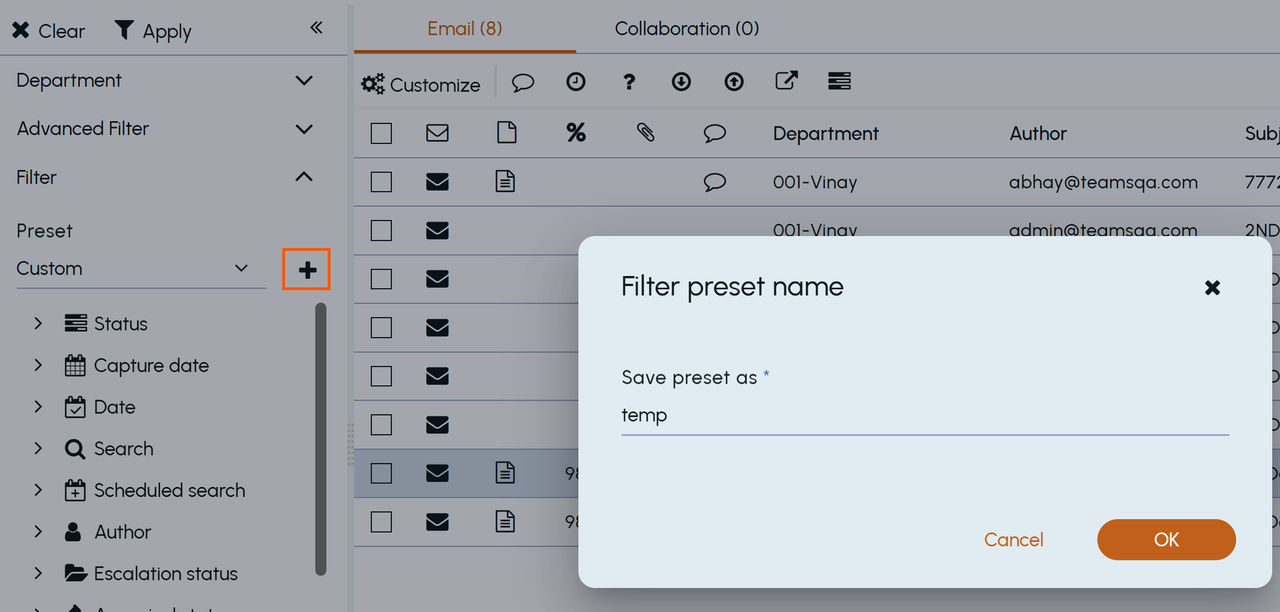
If you want to use the same facet settings frequently, you can save this setting as a filter preset option. In the Preset drop-down, selectCustom, then click the**+**icon next to the drop-down arrow. In the Save preset as field, enter a unique name of the filter preset, and click OK.
 |
|---|
Upon successful addition, the newly saved filter preset appears in the Preset drop-down.
-
Click Apply.
The application displays the Email andCollaboration tabs based on the services subscribed and enabled for you.
Notes :
1\. If only the Exchange service is enabled for you, theEmail tab appears. If theExchange and theMicrosoft Teams services are enabled for you, theEmail and theCollaboration tabs appear respectively.
2\. When no capture date or date is selected in the filters, Arctera Surveillance, by default, displays only review items captured within the last one year. This restriction does not apply when the user selects a specific date range outside the one-year window in the capture date filter or date filter, or searches using a specific Item ID.
Related information