
Removing a specific role to users in one or more departments and exceptions
You can perform the following actions using the Department > Users > Remove option:
-
Remove the Department Reviewer role for one or more departments
Dissociate departments to a user so that the user cannot review those departments.
-
Remove the Exception Reviewer role for one or more exceptions
Dissociate exception employees to a user so that the user cannot review the items of the exception employees.
-
Remove the Compliance Supervisor role for one or more departments
Dissociate departments to a user so that the user cannot supervise these departments.
-
Remove the Passive Reviewer role for one or more departments
Remove the Passive Reviewer role of a user for the selected departments so that the user cannot view items and review history, and or assign appraisal status.
Note: You must have theGrant Users Accesspermissions to perform these user actions. By default, users that have theUser Adminrole have these permissions. To remove anException Reviewerrole in an exception department, you should either haveGrant User Accesspermission in the exception department or you should haveMange Exceptionpermission in the parent department of the exception department.
You can perform the above-listed actions using the cross button displayed in front of the department and user names on the User Summary page. The cross button is not be displayed for departments where the selected user is an exception employee.
To remove the department reviewer role for one or more departments:
-
In the left navigation pane, click Departments.
-
Expand Users in the filter pane.
-
Search for and select the user you want to dissociate to the department to restrict a review.
-
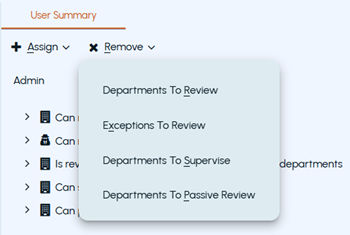
Click the Remove button, and then clickDepartments To Review.
The Select one or more departments to remove the department reviewer role dialog box appears.
-
Search for and select the departments that you want to remove.Note: A maximum of 100 departments are displayed and can be selected. If you have more than 100 results, repeat these steps for every 100 departments.
-
Click OK.
The User Summary page gets refreshed, and the removed departments are not displayed for the user.
To remove the exception reviewer role for one or more exceptions:
-
In the left navigation pane, click Departments.
-
Expand Users in the filter pane.
-
Search for and select the user you want to dissociate exception employees so that the user cannot review the items of the exception employees.Note: A maximum of 100 exceptions are displayed and can be selected. If you have more than 100 results, repeat these steps for every 100 exceptions.
You cannot remove the last active exception reviewer for an exception. An active exception must have at least one exception reviewer.
-
Click the Remove button, and then clickExceptions To Review.
The Select one or more departments to remove the exception reviewer role dialog box appears.
-
Search for and select the exceptions that you want to remove to review.
-
Click OK.
The User Summary page gets refreshed, and the removed exceptions are not displayed for the user.
To remove the compliance supervisor role for one or more departments:
-
In the left navigation pane, click Departments.
-
Expand Users in the filter pane.
-
Search for and select the user you want to dissociate departments so that the user cannot supervise these departments..
-
Click the Remove button, and then clickDepartments To Supervise.
The Select one or more departments to remove the compliance supervisor role dialog box appears.
-
Search for and select the departments that you want to remove.
-
Click OK.
The User Summary page gets refreshed, and the associated departments are removed from the user's supervision.
To remove the passive reviewer role for one or more departments:
-
In the left navigation pane, click Departments.
-
Expand Users in the filter pane.
-
Search for and select the user you want to remove the Passive Reviewer role for the selected departments so that the user cannot view items and review history, and or assign appraisal status.
-
Click the Remove button, and then clickDepartments To Passive Review.
The Select one or more departments to remove the passive reviewer role dialog box appears.
-
Search for and select the departments that you want to remove for a passive review.
-
Click OK.
The User Summary page gets refreshed, and the associated departments are removed from the user's passive review.
Related information