
Predefined reports
Predefined report types in Arctera Surveillance
This section explains the function of the predefined Arctera Surveillance report types.
| Report Type | Description |
|---|---|
| Evidence of Bloomberg Review by Department | Extracts information on the required number and percentage of sampled items received from Bloomberg channel that have been captured and reviewed for the selected department or employee. |
| Evidence of Domino (External) Review by Department | Extracts information on the required number and percentage of sampled items received from Domino external channel that have been captured and reviewed for the selected department or employee. |
| Evidence of Domino (Internal) Review by Department | Extracts information on the required number and percentage of sampled items received from Domino internal channel that have been captured and reviewed for the selected department or employee. |
| Evidence of Exchange (External) Review by Department | Extracts information on the required number and percentage of sampled items received from Exchange external channel that have been captured and reviewed for the selected department or employee. |
| Evidence of Exchange (Internal) Review by Department | Extracts information on the required number and percentage of sampled items received from Exchange internal channel that have been captured and reviewed for the selected department or employee. |
| Evidence of SMTP (External) Review by Department | Extracts violated information on the required number and percentage of sampled items received from SMTP external channel that have been captured and reviewed for the selected department or employee. |
| Evidence of SMTP (Internal) Review by Department | Extracts information on the required number and percentage of sampled items received from SMTP internal channel that have been captured and reviewed for the selected department or employee. |
| Evidence of IM Review by Department | Extracts information on the required number and percentage of sampled items received from Instant Messaging channel that have been captured and reviewed for the selected department or employee. |
| Evidence of Review by Reviewer | Extracts information about the reviewerArcteras activities in departments. |
| The report is configured by selecting departments and a time range. Reviewers within those departments are included in the report. The report includes every department where reviewer actions occurred within the time range, even if every department is not specifically selected during the configuration of the report. |
Generating predefined reports
You must have the View Reports permission to generate a new report. By default, most users with a department role have this permission.
To generate a report
-
In the left navigation pane, click Reports.
-
In the Select report type field, select the type you want to generate.
See Predefined reports.
-
Enter the start date and end date in respective fields to specify the duration for which you want to generate report.
-
Click Select Department to search for and select departments for which you want to generate a report.Note: To select multiple adjacent departments, hold down the Shift key and click the first and the last name in the range. To select multiple, non-adjacent departments, hold down the Ctrl key and click the required names.
-
(Optional) To remove all the selected departments, click Reset. To remove a particular department from the selection, click remove icon of that department.
-
Click Generate.
-
After generating the report, perform the following on the toolbar as required.
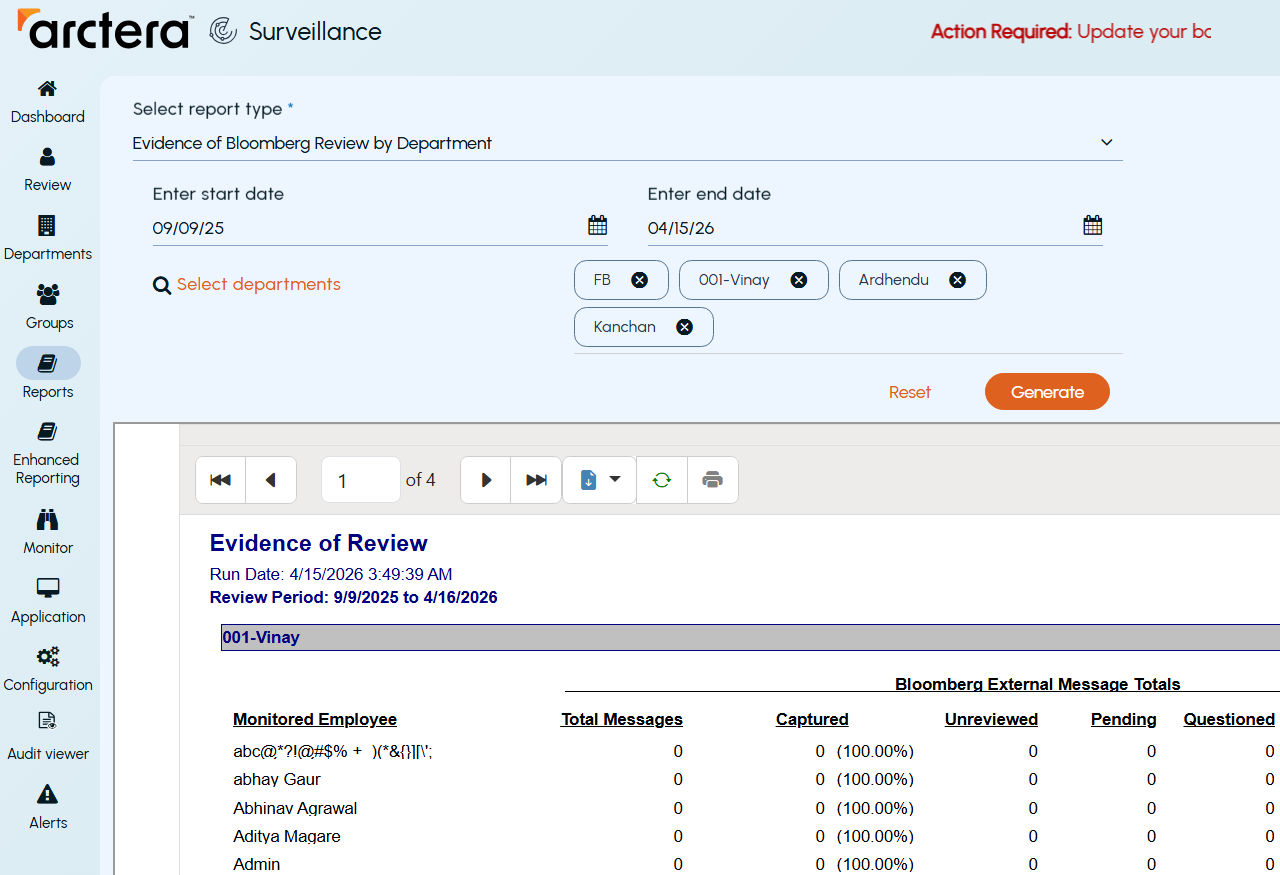
A sample report pane that depicts its standard options is shown below.
 |
|---|
-
To print a report, click the Print icon.
-
To export a report, click the Export icon, and select one of the available export types (CSV, Excel, MHTML, PDF, TIFF, WORD, or XML).
-
To refresh the view, click the Refresh icon.
-
Click on the page number to display and navigate to a selected page.
-
Click the | < icon to go to the first page of the list.
-
Click the > | icon to go to the last page of the list.
-
Click the < icon to go to the previous page of the list.
-
Click the > icon to go to the next page of the list.
Related information